



How to Sell Kids Clothes on Shopify: Age Sizes, a Size per Piece, and Outfits as Sets
How to set up age sizes, put a size guide next to the size picker, let parents shop by age and sell outfits as sets, based on Shopify's own documentation.
Selling kids clothes online is harder than selling adult clothes. The parent is buying for someone else, sizes go by age rather than S, M and L, and parents often want the whole outfit rather than a single piece.
The short version: set up one Size option with age values, put a size guide on every product, let parents shop by age, and give them a way to add a full outfit with a size for each piece.
Below, we go through each step using Shopify's own documentation. Steps 1 to 4 are standard Shopify setup, and we've flagged the places where you need a compatible theme. At the end, we show how Fable, the kidswear preset of our Blum theme, handles all of it.
Step 1: Set up age sizes as variants
Create one option called "Size" and fill it with age values like 0-3M, 3-6M, 2T, 4T and 5-6Y. A single option keeps the product page simple and gives your filters one thing to read.
Use exactly the same option name and value format on every product. Shopify's filter setup asks you to check that option names match exactly, so "Size" on one product and "Age" on another ends up as two separate filters.
A few limits to know about:
- Each product can have up to 3 options and 2,048 variants.
- The variant limit went up from 100 to 2,048 in October 2025, and it applies to all merchants.
- Some older apps and extensions may still only handle 100 variants, so check yours before you build a big size matrix.
For kids clothing, the 3-option cap is the one you'll actually run into. Size and colour take two, which leaves one for something like style or pack size.
You should also set the product category. Shopify's product taxonomy includes a Baby & Children's Clothing category with attributes for age group and children's clothing size, and category metafields can be connected to variant options to keep everything consistent.
Step 2: Add a size guide
Shopify doesn't have a built-in size chart. The official approach is to create a page with your chart and link it to each product with a metafield. Themes that support dynamic sources can then show it as a pop-up.
We've written up the full setup in How to add a size chart in Shopify, so here we'll just focus on where the guide goes.
Put it right next to the size picker, not in the footer or in a tab below the fold. A parent deciding between 2T and 3T needs the chart at that exact moment. For kids, show age, height and weight side by side, because children in the same age band can vary a lot.
Step 3: Let parents shop by age
Plenty of parents don't start with a product type. They start with a child: "she's 18 months."
Build two layers:
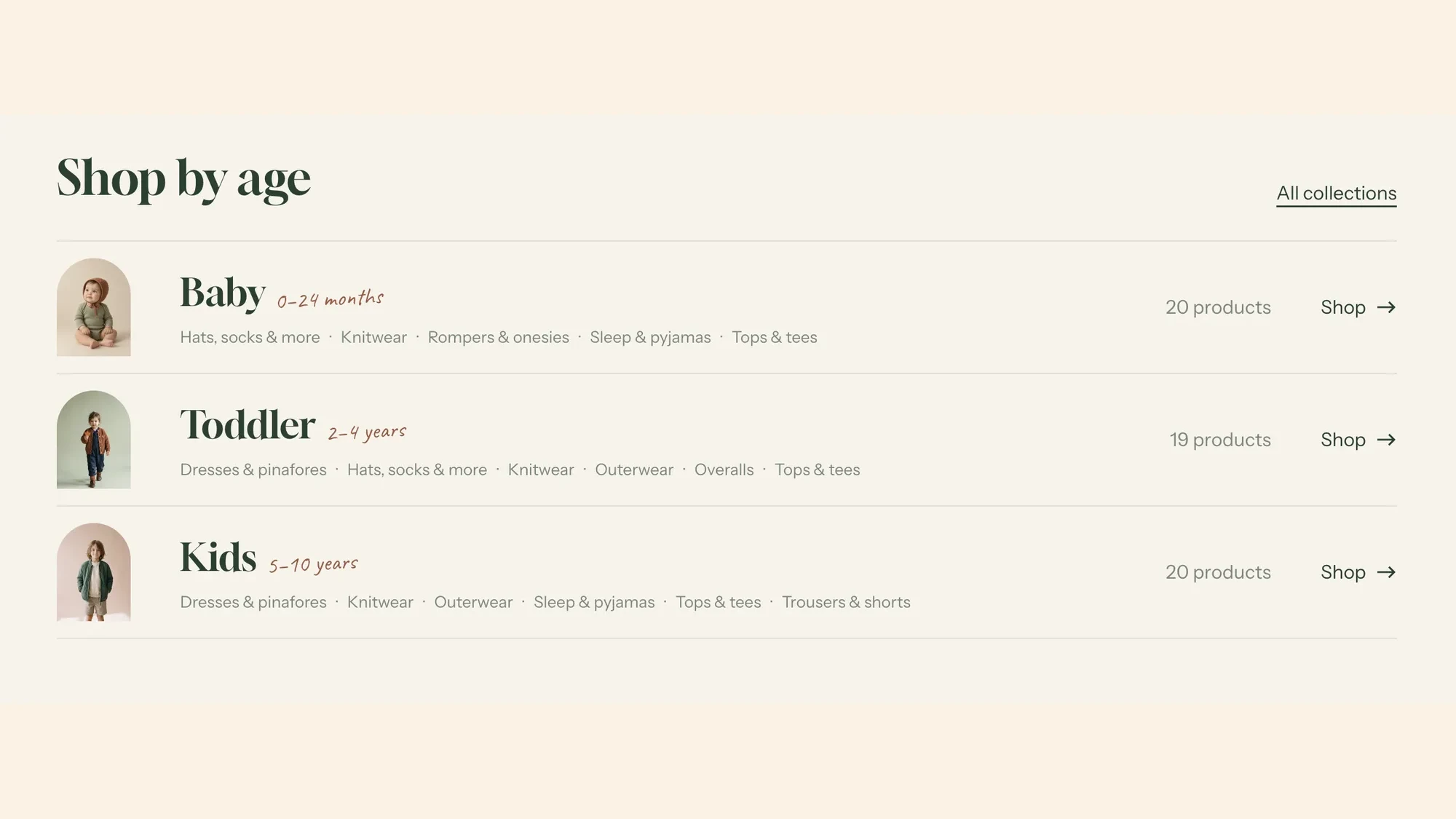
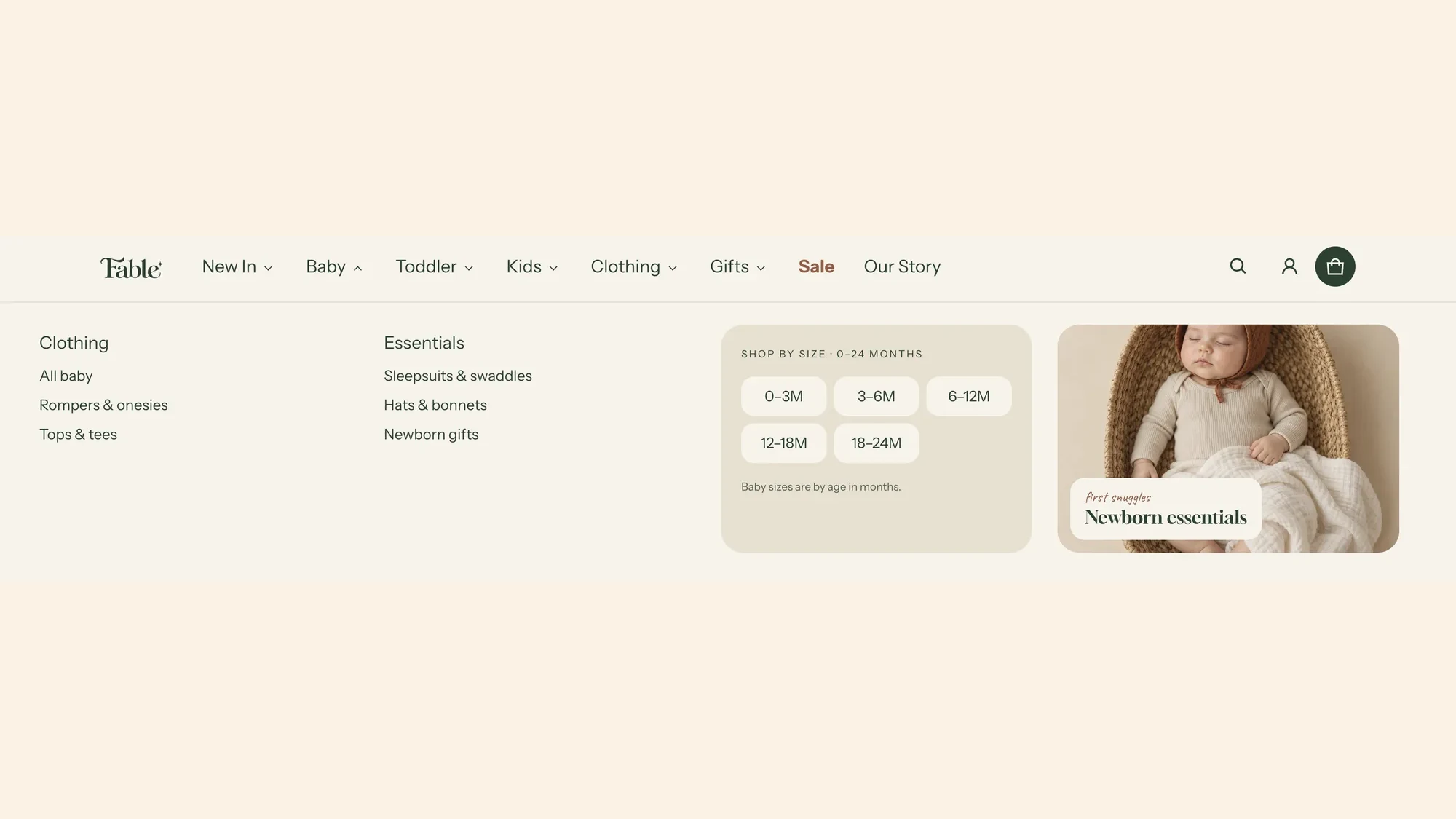
- Age collections in your menu. Baby, Toddler and Kids, each linking to its own collection. It's the quickest route from the homepage.
- Size filters on collection pages. In Search & Discovery, filters can be built on product options or metafields, with up to 25 filters per store.
Because product options are variant-level filters, a filter on your Size option shows the age sizes you created in Step 1. You can group values if you like, for example folding a few close sizes into one displayed value.
Test two things before launch. First, check that the filter puts age sizes in the right order. Shopify gives filters named "Size" a custom sort for common sizing terms, but it doesn't say whether that includes 0-3M, 3-6M and 2T, so don't assume it does. Second, if you plan to filter on category metafields, test that too. Shopify's help pages contradict each other here: the product category page says they aren't supported, while the filters page lists them.
Filters also need a theme that supports them.
Step 4: Sell outfits as sets
A parent who likes a top may also need the bottoms, the socks and the jacket. There are three ways to sell that in Shopify, and each one does a different job.
| Shopify Bundles app | Complementary products | Theme "shop the look" with multi-add | |
|---|---|---|---|
| What it does | Sells a fixed set as one product | Suggests other items on the product page | Adds several pieces to the cart in one click |
| Cost | Free | Free (Search & Discovery) | Depends on the theme |
| Sizes | Customer picks a variant per item. Matching options like size can be combined into one selector | Each item is separate, so each keeps its own size | Each piece keeps its own size |
| Price | One bundle price | No set price | No set price, unless you add a discount |
| Limits | 30 components, 3 options, 100 variants per bundle | Up to 10 per product | Theme-specific |
| Best for | Fixed sets and multipacks | "Complete the look" and "pairs well with" blocks | Outfits where each piece needs its own size |
Shopify Bundles. The free app handles fixed bundles and multipacks, but not mix-and-match. If your bundle components share an option such as size, Shopify can combine them so the buyer only picks it once. What happens when pieces use different size scales, like a baby-month top with a toddler-T bottom, isn't documented, so test that before you promise it to anyone. The eligibility page lists the other limits: up to 30 components, 3 options and 100 variants per bundle. Our guide to creating product bundles in Shopify has the setup steps.
Complementary products. In Search & Discovery you can choose up to 10 complementary products per product. These power "complete the look" and "pairs well with" blocks, as long as your theme has them. They're sold as separate items, with no set price.
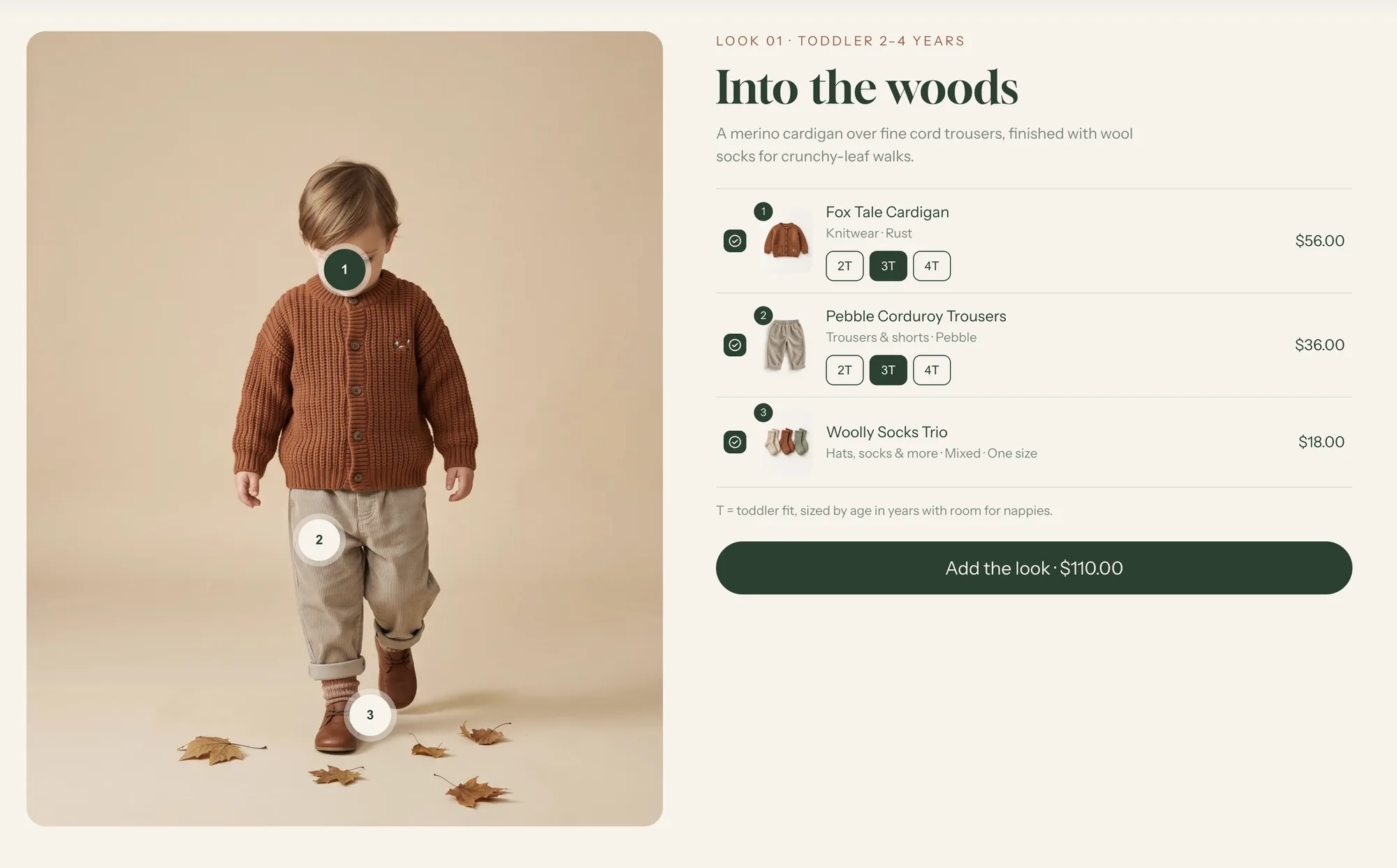
Theme "shop the look" with multi-add. A theme can add several variants to the cart in one call through the Ajax Cart API. Each piece usually stays as its own line at its own price, so add a discount rule if you want a set price. The docs don't cover what happens when one item in the call is sold out, so test that on your own store.
You might also come across combined listings. They're Plus and enterprise only, and they group products that share an attribute, like one shoe in several colours. They aren't built for selling sets.
How Fable handles it
Fable is the kids and baby clothing preset of our Blum theme. We built it around two ideas: selling the whole outfit, and telling the story behind the clothes.
Outfit-led.
- Shop the look. Parents pick a size for each piece in a look and add the whole outfit in one go.
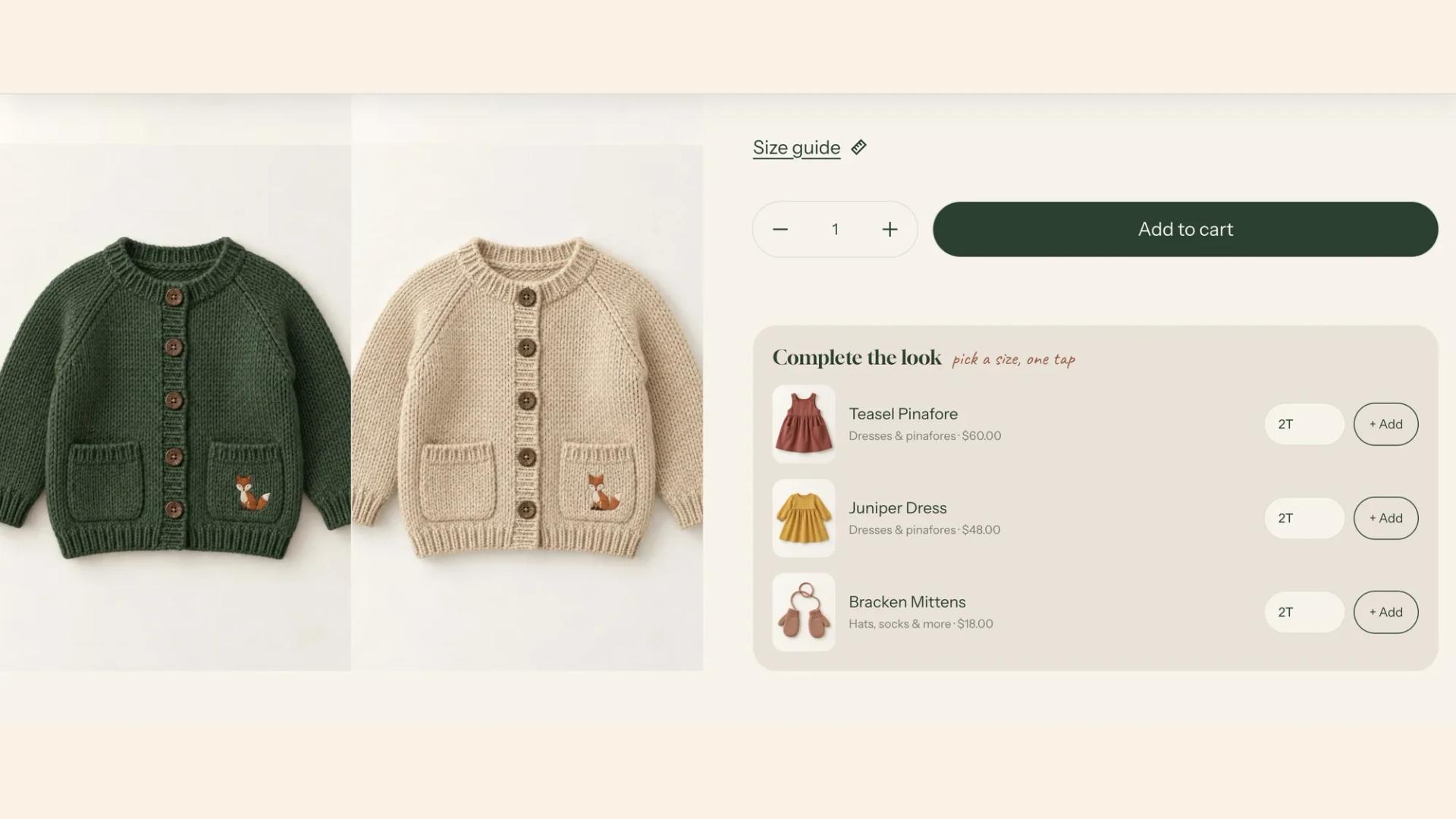
- Complete the look and Pairs well with. Both pull from the complementary products you set in Search & Discovery. In the cart, Pairs well with is set to the size the parent already has in the cart.
- Shop by age. Shop by age rows, size tiles in the mega menu, and an age range on product cards.
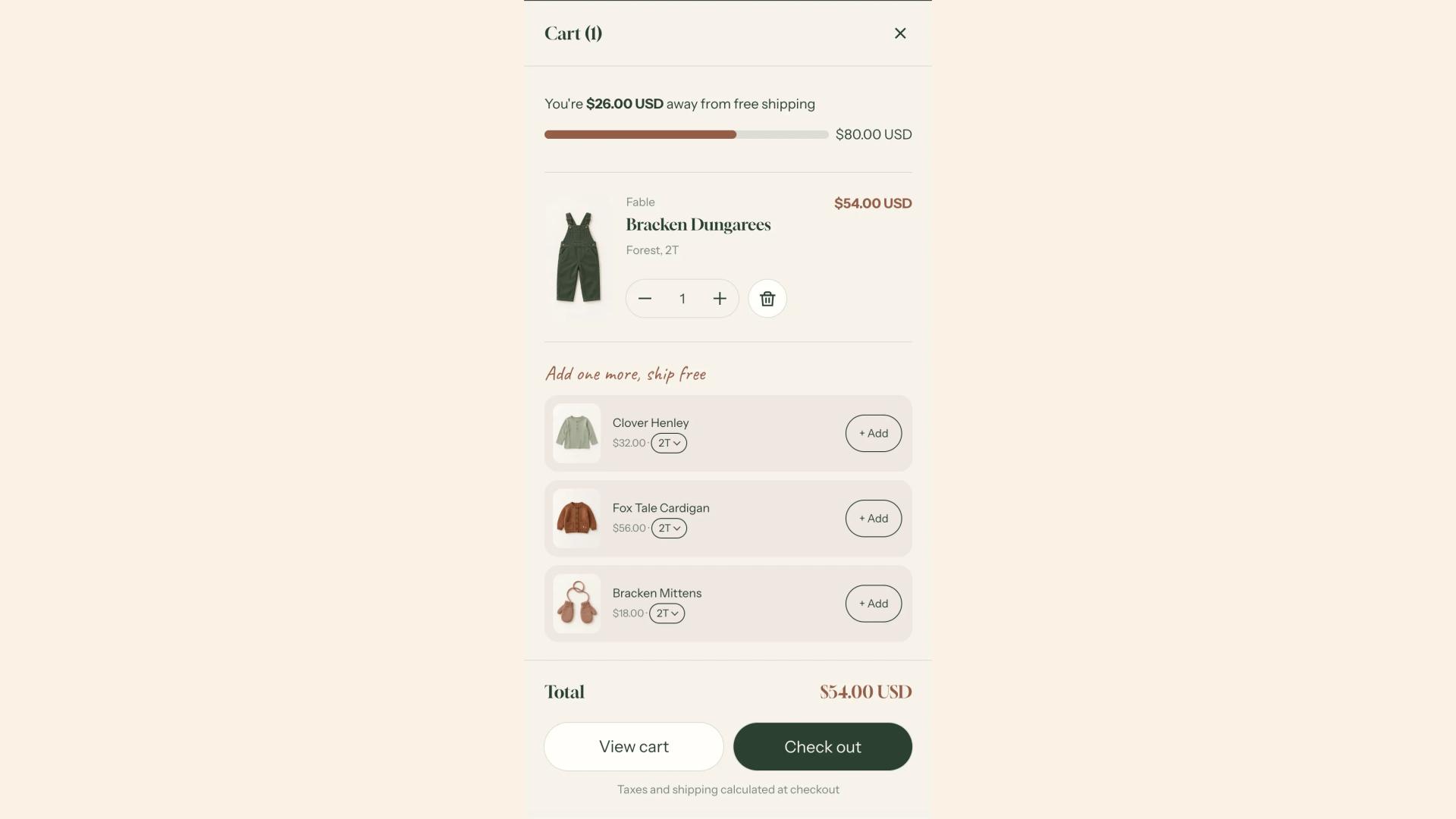
Story-led. The storybook design gives a small kidswear brand its own feel, and the editorial sections give you room to explain materials and how each piece is made. When a parent is buying for a baby, those details help close the sale.
To be clear, you still set up sizes, size guides and complementary products in Shopify yourself. Fable gives them somewhere to show up, so Steps 1 to 4 still apply.
Blum costs $170 and includes every preset, Fable included. The full feature set is on the Fable page.
Checklist
- One "Size" option with age values, named the same on every product
- Product category set to Baby & Children's Clothing
- A size guide page linked by metafield, shown next to the size picker
- Baby, Toddler and Kids collections in the menu
- A Size filter in Search & Discovery, with the age order tested
- Complementary products chosen for your best sellers
- A decision on sets: a fixed Bundles app set, "shop the look" with multi-add, or both
- Sold-out and mixed-size cases tested before launch
FAQ
How many sizes can a Shopify product have?
Each product can have up to 3 options and 2,048 variants. A single Size option can hold as many age values as you need within that variant total. Just keep in mind that some older apps only handle 100 variants.
Does Shopify have a built-in size chart?
No. The official method is a page linked through a product metafield, shown as a pop-up in themes that support it. Our size chart guide walks through it.
Can parents pick a different size for each item in a bundle?
In the Shopify Bundles app, buyers can pick a variant for each item, and matching options like size can be combined into one selector. Mixing different size scales across pieces isn't documented, so test your own set.
What's the best way to sell matching sibling outfits?
Make each piece its own product, one per size range, then link them with a "shop the look" block. We couldn't find a sibling-specific feature anywhere in Shopify's help pages.
Ready to build your kids store?
See how Fable handles age sizes, per-piece sizing and whole outfits, then try it free on the Shopify Theme Store. Still comparing themes? Our guide to the best Shopify themes for kids and baby clothing covers the main options.
More from the blog
Ready to convert more?
Stop leaving revenue on the table.
Your theme is the highest-leverage conversion tool you have.